AI Providers
Connect AI providers to power your coding agents in Forkline.
Overview
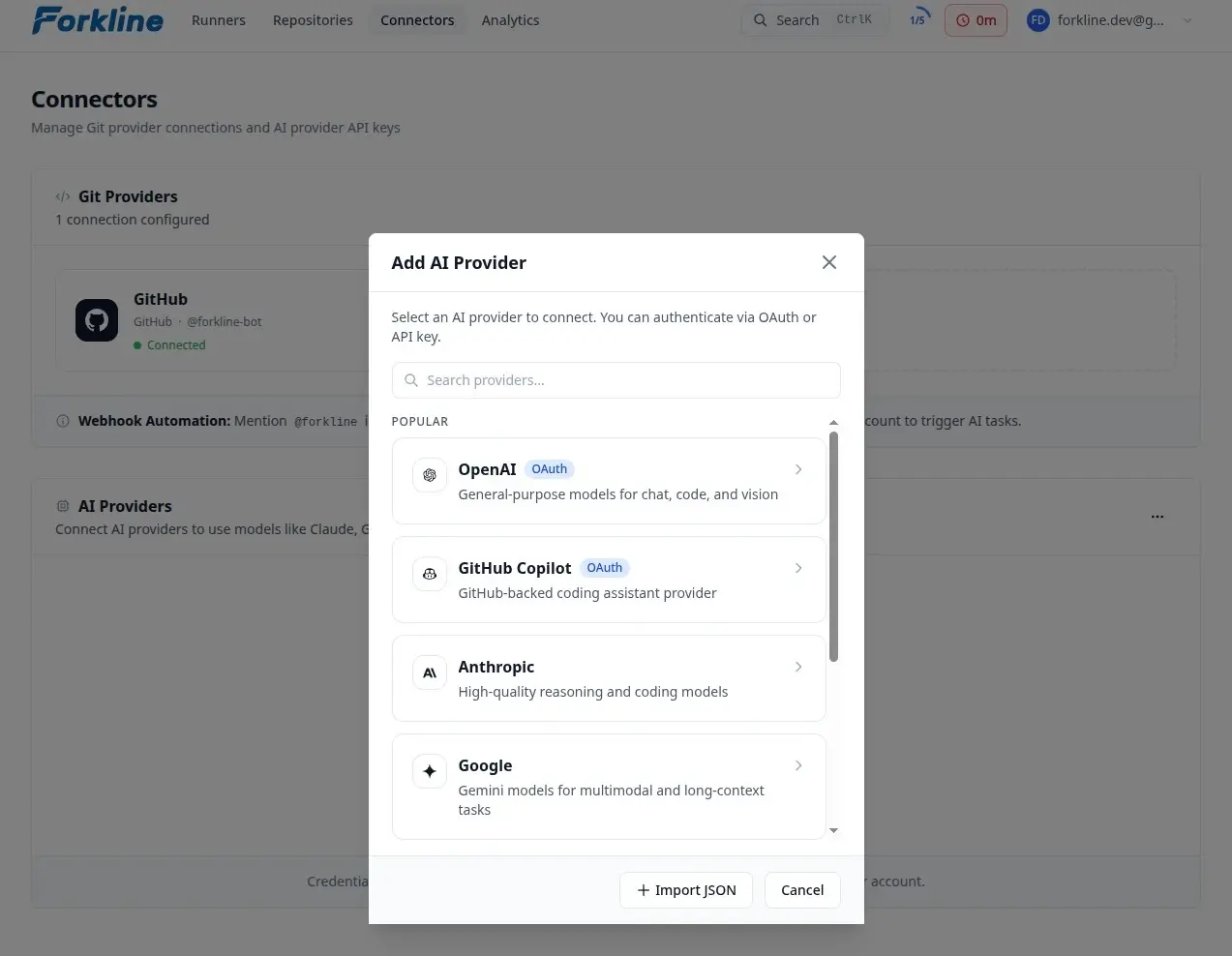
Forkline supports the same provider ecosystem as OpenCode through models.dev. You can connect providers with OAuth when available, or add API keys for direct access to their models.
Forkline supports:
- GitHub Copilot with OAuth
- OpenAI with OAuth or API key
- Anthropic, xAI, Mistral, Groq, Cohere, Perplexity, DeepSeek, Amazon Bedrock, Azure OpenAI, and many more with API keys
- Custom OpenAI-compatible providers for managed gateways and enterprise endpoints
Info: Your API keys are stored securely with per-user isolation. They’re never exposed in logs.
Connection Methods
Choose the setup that matches your provider:
| Provider | Sign-in method | Best for |
|---|---|---|
| GitHub Copilot | OAuth | Teams already using Copilot subscriptions |
| OpenAI | OAuth or API key | ChatGPT/OpenAI users who want fast setup or direct API billing |
| Most other providers | API key | Anthropic, xAI, Mistral, Groq, Cohere, and similar services |
| Custom provider | API key + base URL | Managed OpenAI-compatible gateways and enterprise endpoints |
Note: Forkline also includes free OpenCode Zen models. Adding your own provider gives you access to the models and billing account you already use.
GitHub Copilot
GitHub Copilot is the fastest way to connect a coding-focused provider through OAuth:
- Go to Git Providers and scroll to AI Providers
- Click Add Provider
- Select GitHub Copilot
- Click Connect with OAuth
- Complete the GitHub authorization flow
- Return to Forkline and choose a model
Best for:
- Teams already paying for GitHub Copilot
- Quick setup without managing API keys
- Coding workflows where Copilot model access is already approved
Requirements
| Requirement | Why it matters |
|---|---|
| GitHub account | Used for OAuth sign-in |
| Active Copilot plan | Required for Copilot model access |
| Copilot enabled for your account or organization | Ensures the connected account can use the models |
OpenAI
OpenAI supports both OAuth and API key authentication in Forkline.
Connect OpenAI with OAuth
- Go to Git Providers and scroll to AI Providers
- Click Add Provider
- Select OpenAI
- Choose Connect with OAuth
- Sign in to your OpenAI account and approve access
- Return to Forkline and set your preferred model
Best for:
- Fast account setup
- Users already signed in to OpenAI
- Reducing manual credential handling
Connect OpenAI with an API key
- Open Git Providers
- Click Add Provider
- Select OpenAI
- Paste your API key
- Save the provider
Use an API key if you want direct control over billing, organization settings, or project-scoped credentials.
API Key Providers
Most providers use an API key instead of OAuth:
- Anthropic
- OpenAI
- xAI
- Mistral
- Groq
- Cohere
- Perplexity
- DeepSeek
- Amazon Bedrock
- Azure OpenAI
- and many more on models.dev
To add an API key provider:
- Go to Git Providers
- Click Add Provider
- Select the provider
- Paste your API key
- Save the provider
Best for:
- Providers that do not offer OAuth in Forkline
- Teams that want explicit billing ownership
- Enterprise accounts with provider-managed API access
Custom Providers
Forkline can also connect to managed OpenAI-compatible endpoints.
Use this when you have a provider or gateway that exposes an OpenAI-compatible API, such as Azure OpenAI or an enterprise AI gateway.
- Go to Git Providers
- Click Add Provider
- Select Custom Provider
- Enter the provider name, base URL, and API key
- Add one or more model IDs
- Save the provider
# Example managed OpenAI-compatible endpoint
Provider: Azure OpenAI
Base URL: https://your-resource.openai.azure.com/openai/deployments/your-deployment
API Key: your-azure-key
Model: gpt-4.1
Setting a Default Model
After connecting a provider, set the model Forkline should use by default.
Account-level default
- Go to Settings
- Find Default Model
- Select your preferred model
Repository override
- Navigate to Repositories
- Open repository settings
- Choose a different default model for that repository
Model Selection in Runners
You can override the default model each time you start a runner:
- Click Start runner
- Use the Model dropdown
- Select a different model
Troubleshooting
OAuth option not available
If you do not see an OAuth button for a provider, that provider must be connected with an API key in Forkline.
OpenAI connected but no models appear
Check that your OpenAI account or API project has access to the model you want to use.
GitHub Copilot authentication succeeds but models fail
Verify that the GitHub account you connected has an active Copilot plan and that Copilot access is enabled for your user or organization.
Next Steps
- Start a runner to begin coding
- Connect a git provider to access repositories
- Configure webhooks for automation