Managing Runners
Learn how to monitor, stop, and manage your active runners efficiently.
Runner Dashboard
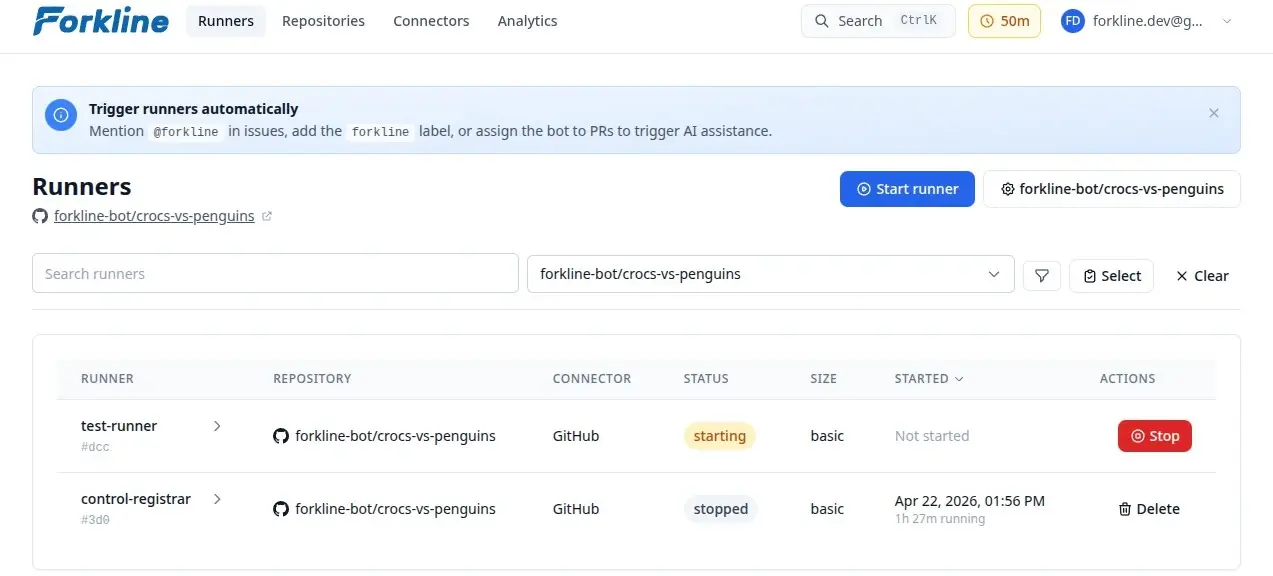
The Runners page provides an overview of all your runners:
Accessing Repository Actions
To show repository-specific actions such as Start runner and repository settings, open the runners view for a single repository.
You can do this in two ways:
- On the Runners page, click the repository in the Repository column.
- On the Repositories page, click the repository card.
Once a repository is selected, the page shows controls for starting a runner and opening that repository’s settings.
Note: On the Repositories page, clicking the repository name opens the repository on your git provider. Click the card if you want to stay in Forkline.
Runner States
Active States
| State | Description | Actions Available |
|---|---|---|
| Pending | Waiting for provisioning | Stop |
| Starting | Initializing, cloning repo | Stop |
| Running | Ready for connections | Stop, Connect |
Terminal States
| State | Description |
|---|---|
| Stopped | User-initiated stop |
| Failed | Error during execution |
| Completed | Task finished (for webhook runners) |
Stopping Runners
From Runners Page
- Navigate to Runners
- Find the runner you want to stop
- Click the Stop button on the runner row
- Confirm the action
From Repositories Page
- Navigate to Repositories
- Click the repository card to open its runners view
- Find the runner you want to stop
- Click the Stop button
- Confirm the action
Warning: Stopping a runner deletes all uncommitted changes. Push your work before stopping.
Automatic Stops
Runners stop automatically when:
- Balance exhausted: Your balance reaches zero
- Heartbeat timeout: Runner stops sending health checks
- Error: Unrecoverable error occurs
Runner Limits
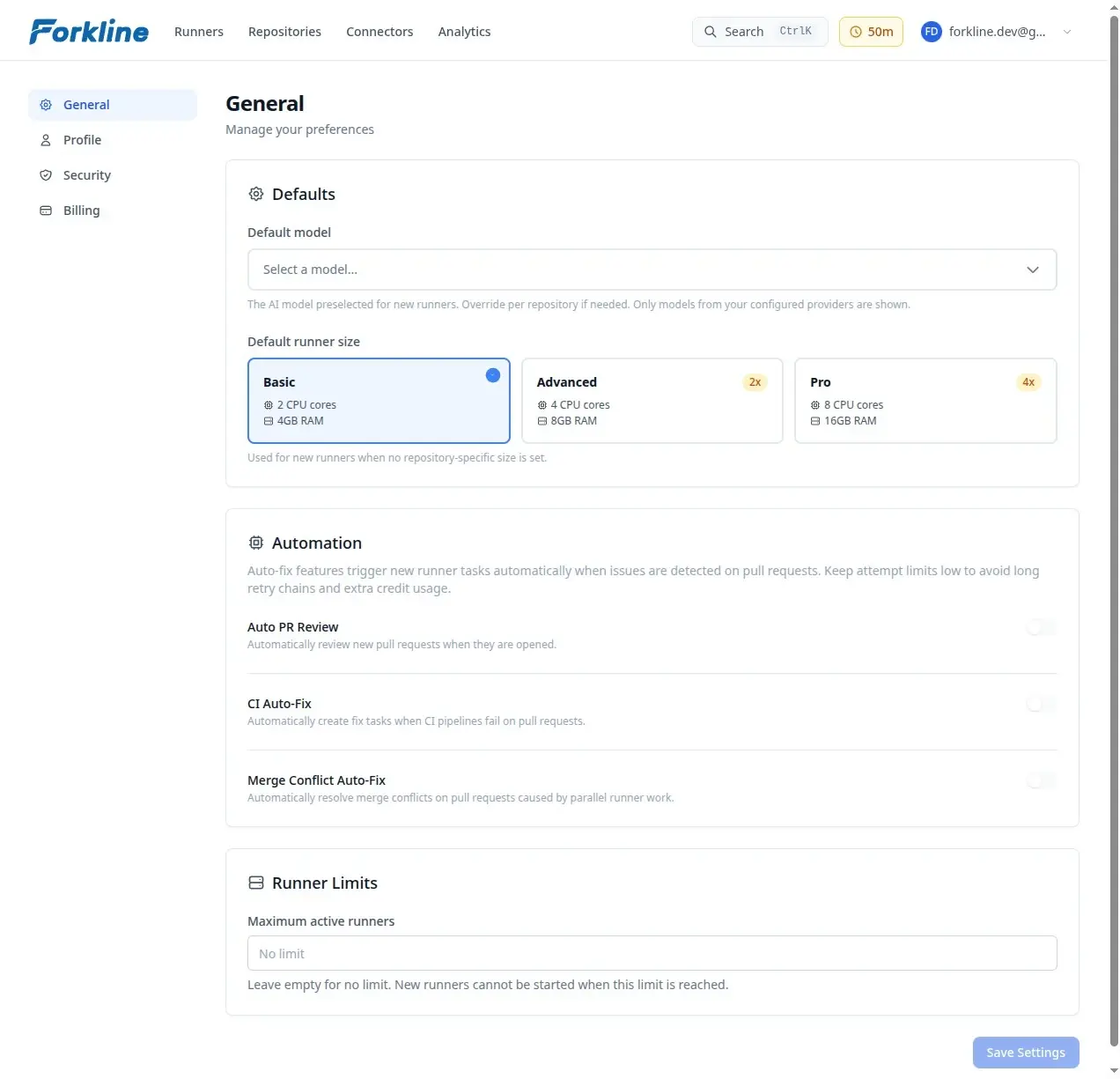
Maximum Active Runners
Control how many runners can run simultaneously:
- Go to Settings → General
- Find Maximum Active Runners
- Set your limit (or leave empty for unlimited)
# Example: Limit to 3 concurrent runners

When limit is reached:
- "Start runner" button is disabled
- Message: "Maximum active runners reached"
- Stop an existing runner to start a new oneTip: Set a limit to prevent accidental usage from forgotten runners.
Webhook Runners
Runners started by webhooks have additional behavior:
- Auto-start: Created when a webhook task arrives
- Idle timeout: Stop after 5 minutes of inactivity
- Task queue: Handle multiple tasks sequentially
Info: Webhook runners are optimized for cost-efficiency. They automatically stop when idle.
Next Steps
- Understand runner sizes for optimization
- Set up webhooks for automation